
How the Disney park planner works, from your trip to the park day
The Mickey Alerts park planner helps you choose which park to visit each day and when to ride, eat and take a break. We build your schedule from wait times we measure every few minutes, with shows included too. It is free for everyone, and you can use the website without signing in. The planner never books or buys anything for you. In the park, the Mickey Alerts app adjusts your plan to live waits. This guide walks you through the website and app. For Lightning Lanes, see how Lightning Lane works and how Fast Forward works.
Checked November 2026 against Disney's published rules and the product as it runs. Companion articles: How Lightning Lane works at Disney World and Disneyland and How Lightning Lane Fast Forward works.
What the planner does
The planner covers Walt Disney World and Disneyland Resort. At Walt Disney World that means Magic Kingdom, EPCOT, Hollywood Studios and Animal Kingdom, with Typhoon Lagoon and Blizzard Beach as days you can add by hand. At Disneyland it means Disneyland Park and Disney California Adventure.
- Chooses days for your parks. You tell us which parks matter and how many days you want at each. The planner uses our crowd data to choose the lightest days and explains each choice.
- Builds each park day. The planner puts your rides, shows, meals and breaks in order, with a time for each stop. It allows for expected waits and the walk between stops. If a stop cannot fit, it stays on the day with an explanation.
- Keeps your bookings where they are. Dining reservations, Lightning Lanes and park reservations from your Disney account come in locked, and the plan is built around them.
- Follows you on the day. In the Mickey Alerts app, the Schedule tab shows the day, checks it against live waits, re-plans when a ride goes down or a line spikes, and tells you what to do next.
Adding a restaurant puts a meal on your schedule; it does not reserve a table. You confirm dining alerts and Lightning Lane goals separately. The planner never buys Lightning Lane passes, tickets or rooms.
Where to find it
On the website, open Park Planner from the Resources menu (Tools, then Park Planner, once you are signed in). The planner walks you through five steps: Trip style, Priorities, Trip overview, Schedule and Park day. You can move between them any time.
In the Mickey Alerts app, your trip is at the top of the Today tab. Tap it to switch trips or start one. Open the trip plan takes you to Style, Priorities and Week. The Schedule tab shows one day and its stops. Sign in to the app with your phone number; the account is free.
Your website and app changes carry over to each other. After editing on the website, pull down to refresh in the app. Who is going and trip feedback are available only on the website.
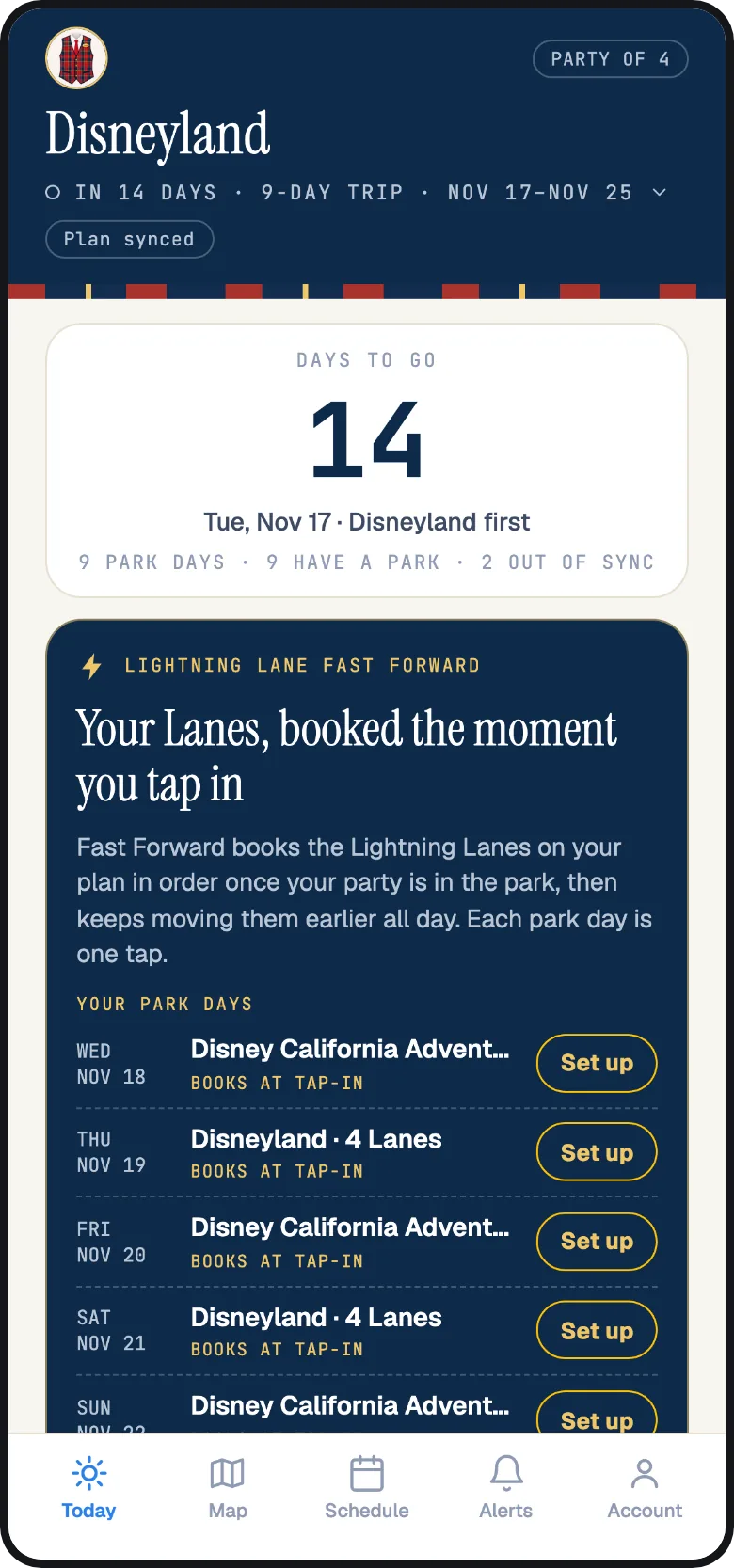
Step 1: your trip and who is going
Press Create a trip and choose Walt Disney World or Disneyland Resort. Pick your dates and set the number of adults and children. You can name the trip too. A trip can last up to 21 days. Once you choose a destination, it stays fixed; create a second trip for the other coast.
You do not enter a hotel, tickets or park reservations. Those come in from your Disney account if you connect it; see your Disney bookings below. Otherwise the planner simply plans the parks you ask for.
If you are signed in on the website, the next screen asks Who is going. Choose up to 12 named travellers from your family profile, or add new ones. The planner uses their height limits, thrill levels and preferences to build the days. You can skip this and return to it through Travellers and preferences under Priorities.
Step 2: your trip style
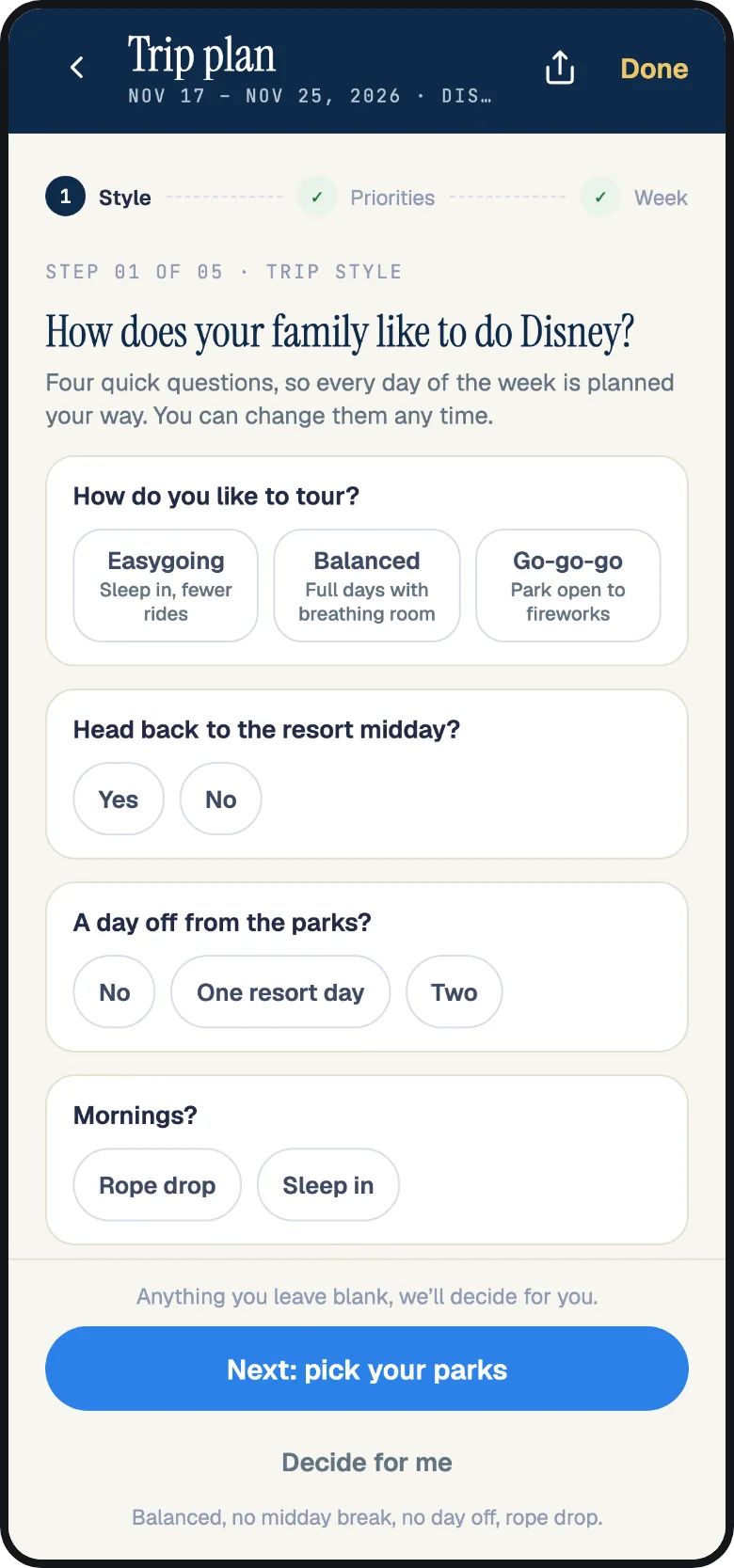
Trip style asks four questions: your touring pace (Easygoing, Balanced or Go-go-go), a midday resort break, a day off from the parks, and rope drop or sleep in for your mornings. We choose any answers you leave blank. Decide for me selects Balanced, no midday break, no day off and rope drop.
Your answers shape each day before you choose rides. An Easygoing week starts later, with fewer stops and longer breaks. A Go-go-go week runs from park open to fireworks. You can change your answers any time. A label on the Trip overview shows your current style.
Step 3: priorities
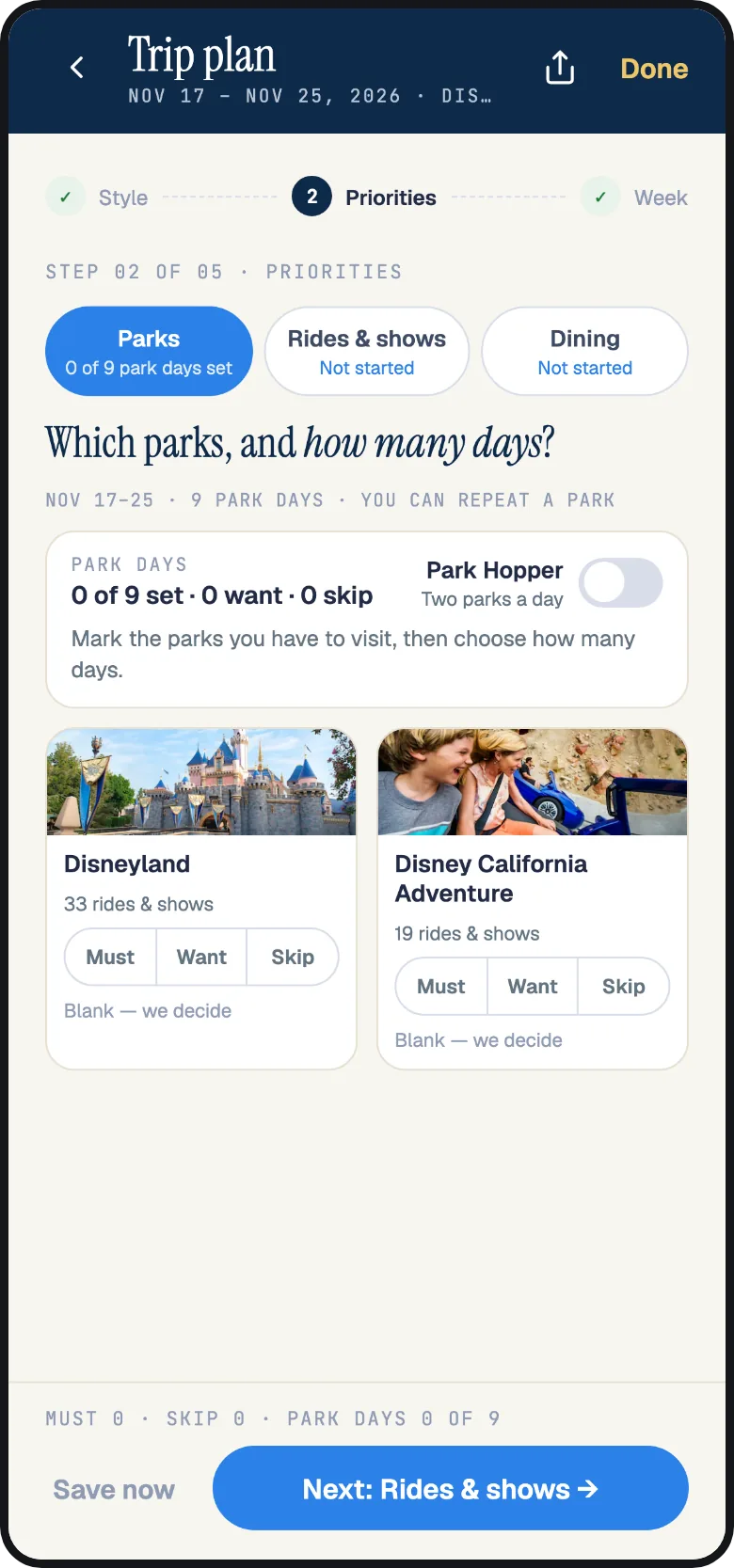
In Priorities, choose Must, Want or Skip for Parks, Rides and shows, and Dining. Must means the plan has to include it. Want means include it if it fits. Skip leaves it out. We decide anything you leave blank.
- Parks. Mark the parks you have to visit and how many days each gets, up to 3 days per park, or 5 with Park Hopper switched on. Park Hopper lets a day hold two parks.
- Rides and shows. You see every ride and show in your parks, with a photo and the number of rides. A Must is placed first, even when the line is long; if it truly cannot fit, it stays on the day with the reason. Wants fit around your Musts.
- Dining. Choose the restaurants where you hope to eat. The planner places each meal on a suitable day and time. You or a dining alert handle the booking.
You can mark as many things as you like. Save and place the week (Save now in the app) saves your choices and assigns parks to days. On the website, Travellers and preferences sits below the picker. Use it to set each person’s comfort and limits.
Step 4: the trip overview, which park on which day
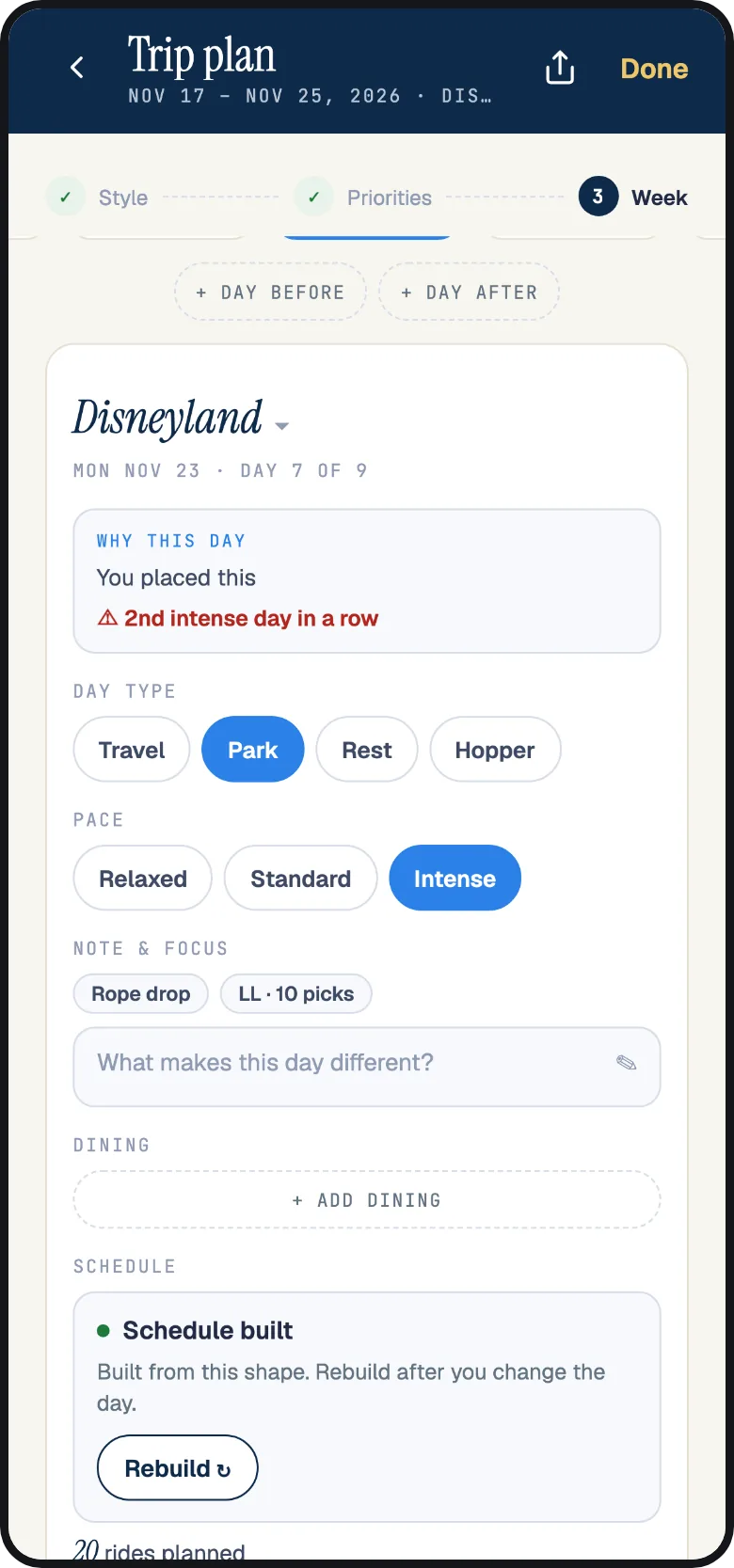
The Trip overview (Week in the app) shows a card for each day. Place my priorities assigns your Must and Want parks to open days, starting with the lightest crowds. Why this day explains each choice. Reasons include expected crowds, Early Entry or Extended Evening Hours for Disney hotel guests, enough park hours for your must-dos, a dining wish, or avoiding a ride closure. You can also use Pick parks by hand. Days you place yourself are labeled.
Crowd level runs from 1 to 10 for each park, based on the daily waits we have recorded there. The planner needs crowd data for your dates to place parks. If there is not enough yet, you choose the parks yourself. You also place parks by hand for trips longer than 14 days and for all water-park days.
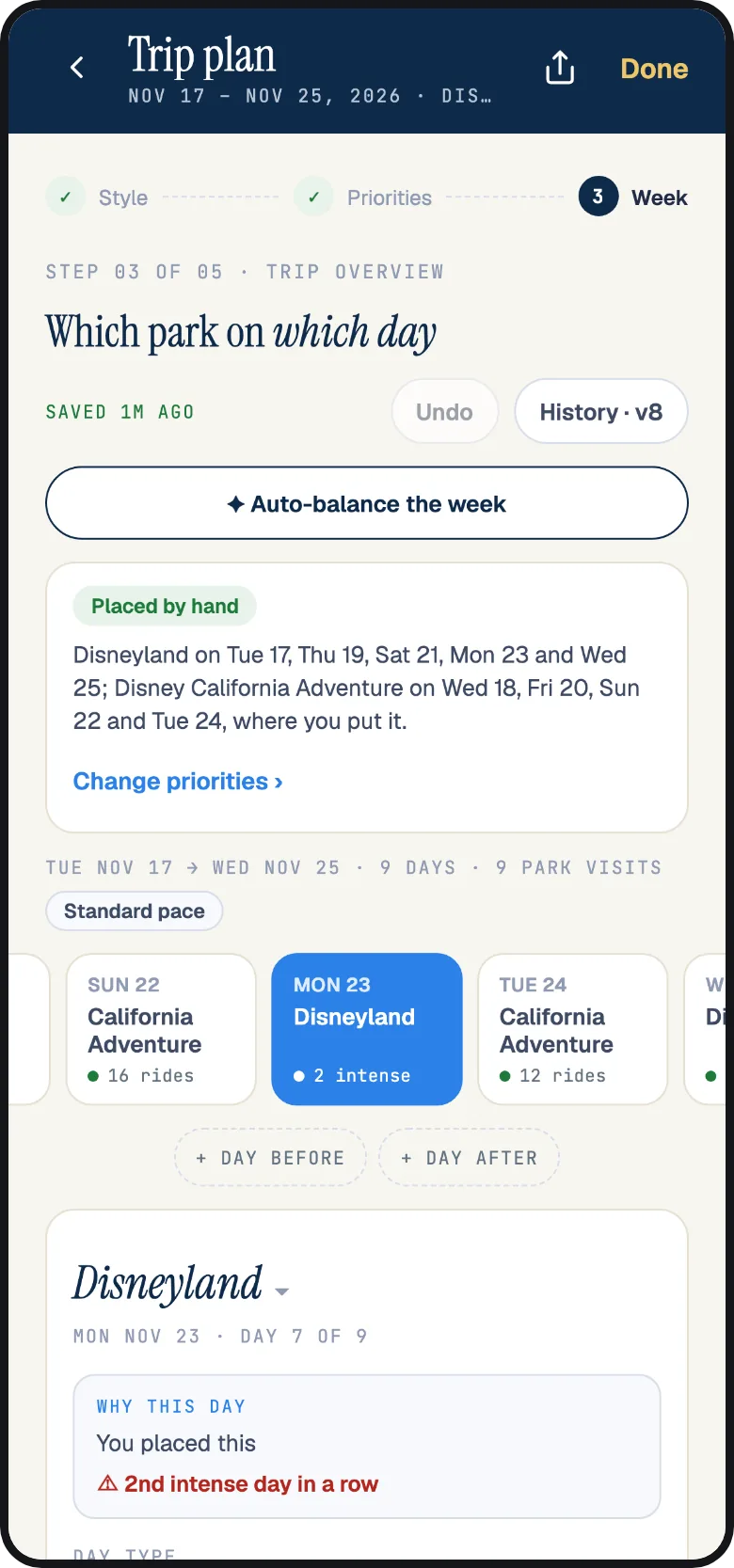
Each day’s card: park, day type, pace and notes
Each day card has the same controls:
- Park, and Then hop to for a second park on a Park Hopper day.
- Day type: Travel, Park, Rest or Hopper. A travel day or a rest day holds no park plan; a park added to a travel day shows as Travel plus that park.
- Pace: Relaxed, Standard or Intense for that one day, starting from your trip style.
- Note and focus: a line about what makes this day different, such as a birthday dinner or a late start, which the day’s plan respects.
- Dining: add a restaurant to the day, or move one to another day.
- Day before and Day after add a day to either end of the trip.
Auto-balance the week rearranges park days you have not fixed, using crowd levels, park hours and your must-dos. It keeps days with pinned stops, dining reservations, booked Lightning Lanes, hotel check-ins or Disney reservations as they are. It also leaves rest, travel, hopper and water-park days alone, along with past days. Use Undo, Redo or Version history to return to an earlier arrangement.
Building the days: what Optimize does
Once you have placed your parks, Build my days builds every park day and opens the Schedule. Optimize this day builds or rebuilds one day. Re-optimize all rebuilds days whose shape has changed. Each day takes a few seconds to build. You can watch the progress or stop the build; stopping leaves your plan as it was.
Optimize chooses the order and time of your stops, allowing for the walk between them. For today, it uses live waits. For future dates, it uses each ride’s typical wait at that time and on that weekday, adjusted for the expected crowd level. It also accounts for park hours, Early Entry and Extended Evening Hours, closures, height limits, your pace, priorities and party preferences.
If a ride cannot fit, it stays on the day with a reason. It may need more time than you have before park close, exceed your chosen thrill level, or have a sold-out Lightning Lane and too long a standby wait. Water-park days stay as you set them because there are no wait times to plan around.
Step 5: the schedule, one day at a time
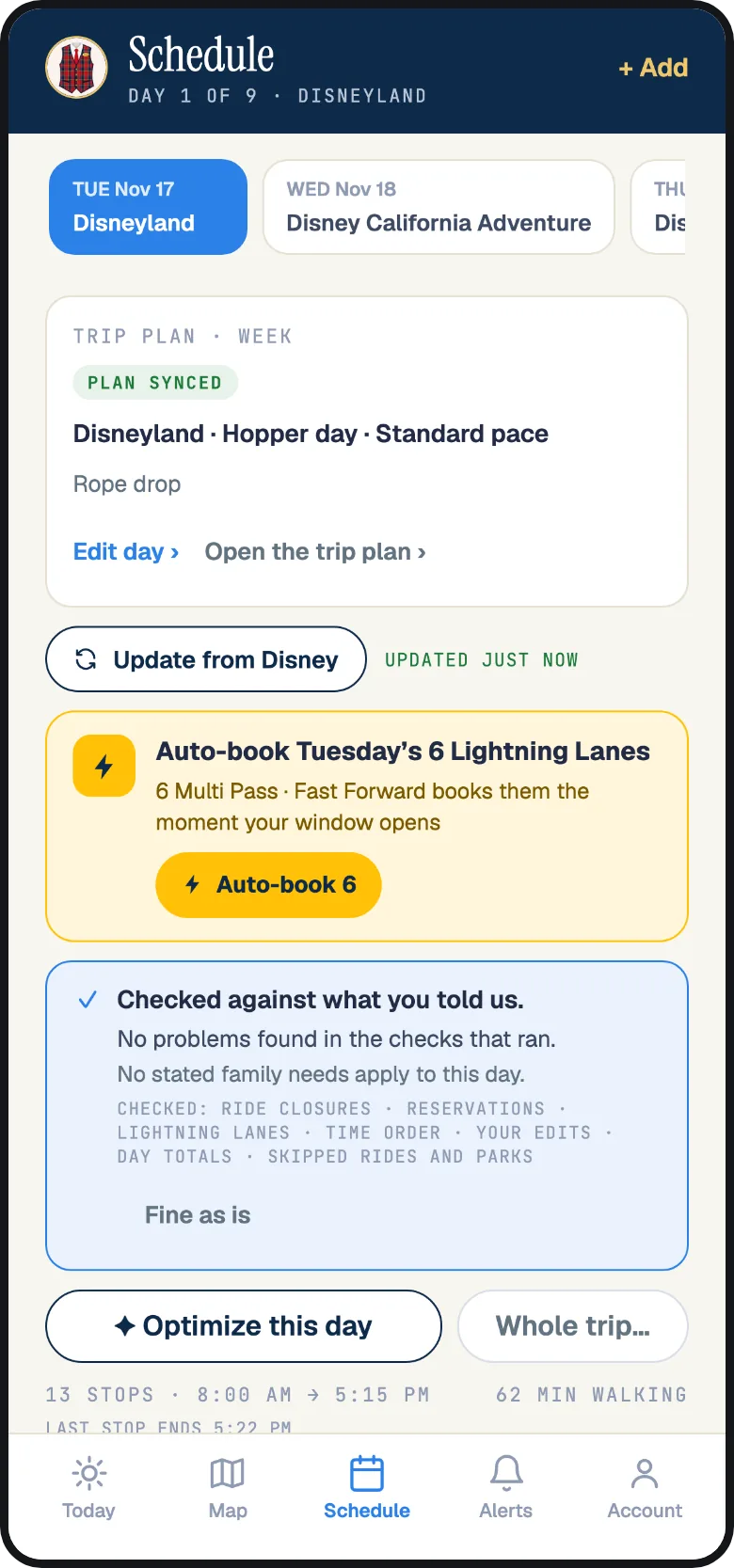
In Schedule, view one day or choose All days. Each day shows totals for walking, time in line and Lightning Lanes. Below those are your stops in order, with times, expected waits and walks between stops. Changes save instantly. Undo takes back your last change.
- Add from catalog adds a ride, show or restaurant to the day; Optimize fits it in next time, or you place it where you want.
- Lock this time fixes a stop at its time; every rebuild works around it.
- Already booked? lets you record a booking to plan around. Choose I booked this for a Multi Pass or Single Pass Lightning Lane and enter its return window. Choose I have a reservation for a table or show.
- Day brief is where you tell the planner what makes this day different.
- Walk through the day reads the day back to you stop by stop, and Plan checks lists anything that looks off, such as a stop that overlaps a reservation.
Wait and Lane, by the hour shows each ride’s expected wait by hour, its typical wait pattern and when its Lightning Lane usually sells out. Choose Add with Lightning Lane to plan that ride with a Lane instead of the standby line.
In the app, Schedule shows one day at a time. Edit day changes its park, pace and note. Use Optimize this day or Whole trip to rebuild, and Add to add a stop. If the schedule no longer matches the week, you will see Schedule out of sync and a Re-sync button.
Dining in the plan
A restaurant you choose in Priorities or add with Add dining becomes a planned meal at a suitable time. It is not a reservation. Reservations from your Disney account come in locked at their booked times. Bookings you enter with I have a reservation are treated the same way.
To look for a table, use a dining alert. In the Park day step, Set up for this day lists meals you have planned but not reserved. Choose Set up alert beside a meal, then review and confirm it on the next screen. You need a saved plan to set up alerts. If you are planning as a guest, we ask you to save first; saving is free.
Optimize keeps the hour before a dining reservation free of long lines. In the park, What now? in the app tells you when there is not enough time for another line before your meal.
Lightning Lanes in the plan
The planner can schedule a ride with a Lightning Lane when it saves time, and each day card counts the Lanes in its plan. Use Wait and Lane on the Schedule to compare expected waits by hour and typical Lightning Lane sell-out times. You can add a Lane yourself or enter a booked return window with I booked this. See how Lightning Lane works for the rules the planner follows.
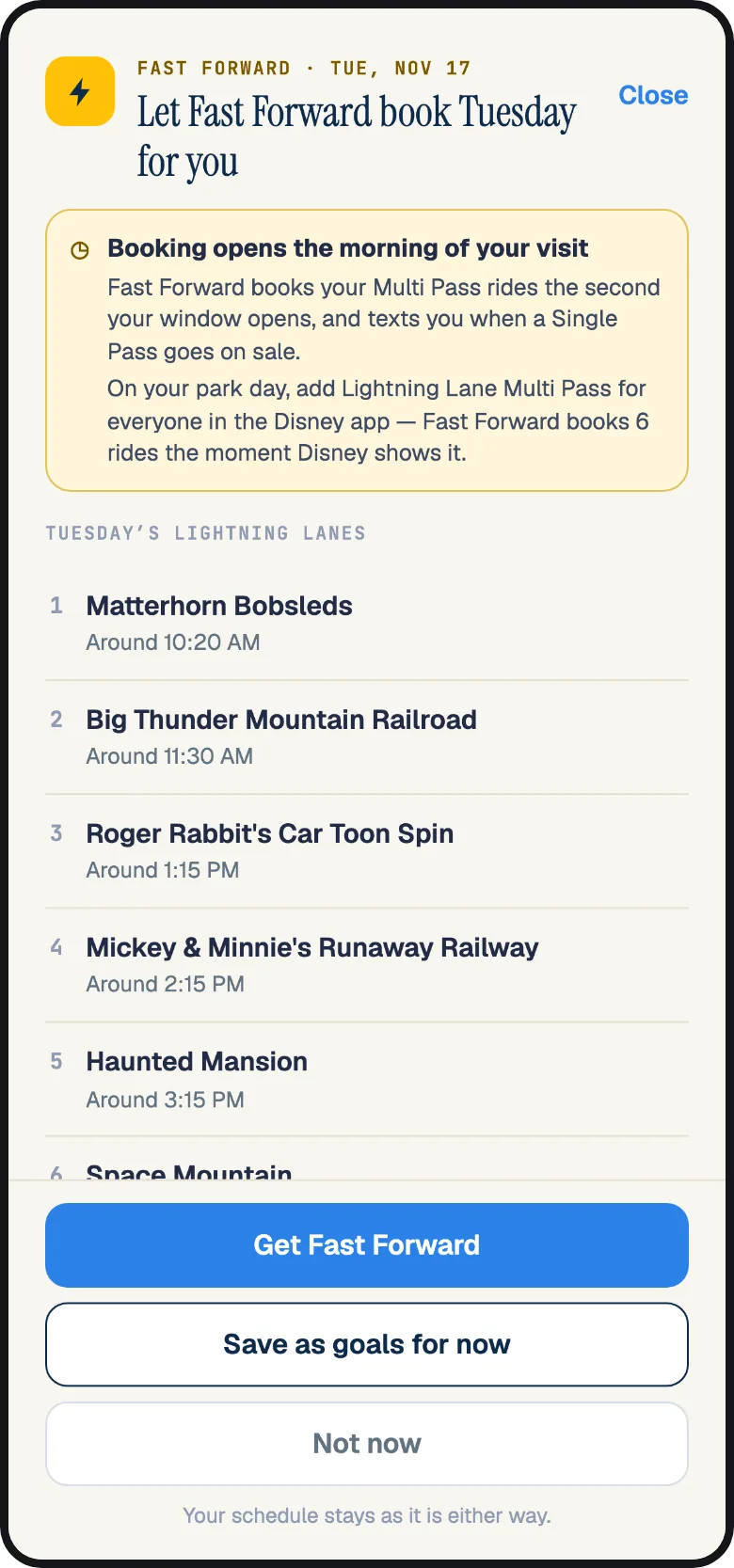
You can book planned Lanes in Disney’s app or use Lightning Lane Fast Forward. On the Schedule, Auto-book this day’s Lightning Lanes opens a list of that day’s Lanes. Save them as Fast Forward goals to book when your Disney booking window opens and keep moving them earlier all day. Fast Forward uses your Disney account and needs a dated pass. Saving goals is free; nothing is booked or charged until you confirm. See how Fast Forward works for each step.
Your Disney bookings
When you connect your Disney account, the planner reads your dates, dining reservations, Lightning Lanes and park reservations from My Disney Experience or the Disneyland app. Connect Walt Disney World and Disneyland separately; each has its own Disney sign-in. You need to be signed in to Mickey Alerts.
- Start from your Disney plans creates a trip from one on your Disney account. If that trip has already started or runs longer than 21 days, its dates are trimmed to start today and run at most 21 days.
- Update from Disney brings in new plans. The planner also refreshes when you open it, no more often than every 30 minutes. The header shows the last update.
- Bookings come in locked, marked From Disney. They cannot be removed or moved in the planner; change or cancel them in Disney’s app, then press Update from Disney. Optimize a day to fit the rest around them.
- A different park in your Disney plans, such as a park reservation that does not match your chosen park, gives you two choices: Use Disney's park or Keep my park.
Importing leaves your own stops untouched and does not rebuild the day. If we cannot read a connected Disney account, Optimize asks you to reconnect before it plans around your bookings.
Before you go: the Park day step
The last website step, Park day, shows your stops in order with their times. Your Disney bookings stay in a separate list. If a planned stop overlaps a booking, the page flags it and leaves the booking in place.
In Set up for this day, choose Set up alert beside an unreserved meal under Dining alerts, or Set up Fast Forward for the Lanes in your plan. Review and confirm on the next screen before anything is booked, created or armed.
Add this day to a calendar downloads a file for your phone’s calendar. Unbooked Lightning Lanes are labeled as planning advice, so you can tell them apart from return times you hold.
On the park day: the app follows the plan
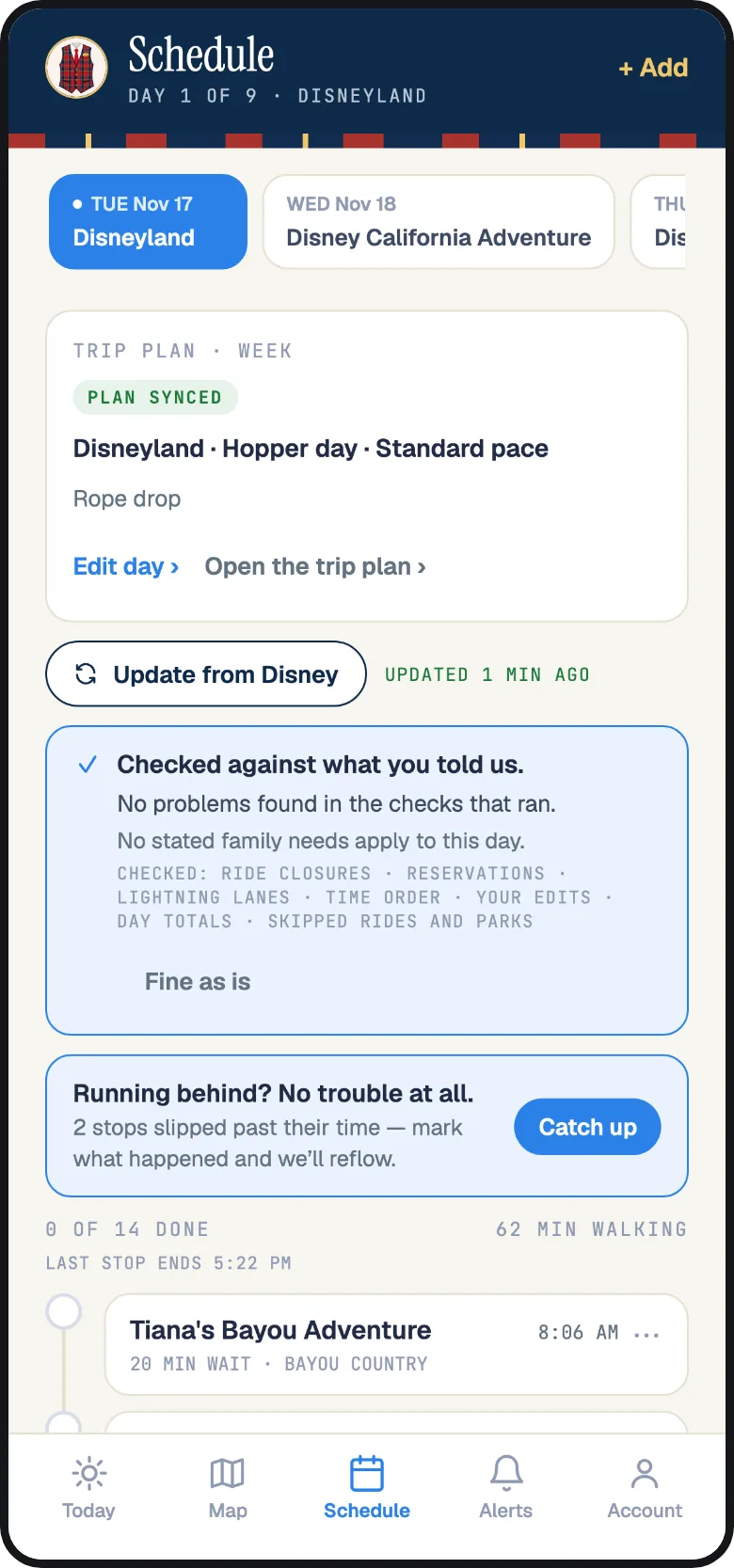
On your park day, open Schedule in the Mickey Alerts app to see today’s plan with your next stop marked. If a ride goes down or a line spikes, the app replans the remaining stops using live waits. Your booked Lightning Lanes and reservations keep their times.
- Check in as you go. Mark a stop done to see the next one and the walk to it.
- Mark what already happened. If you arrived late or took a detour, open the catch-up sheet and check off what you have done. Reflow my day rebuilds the rest from now.
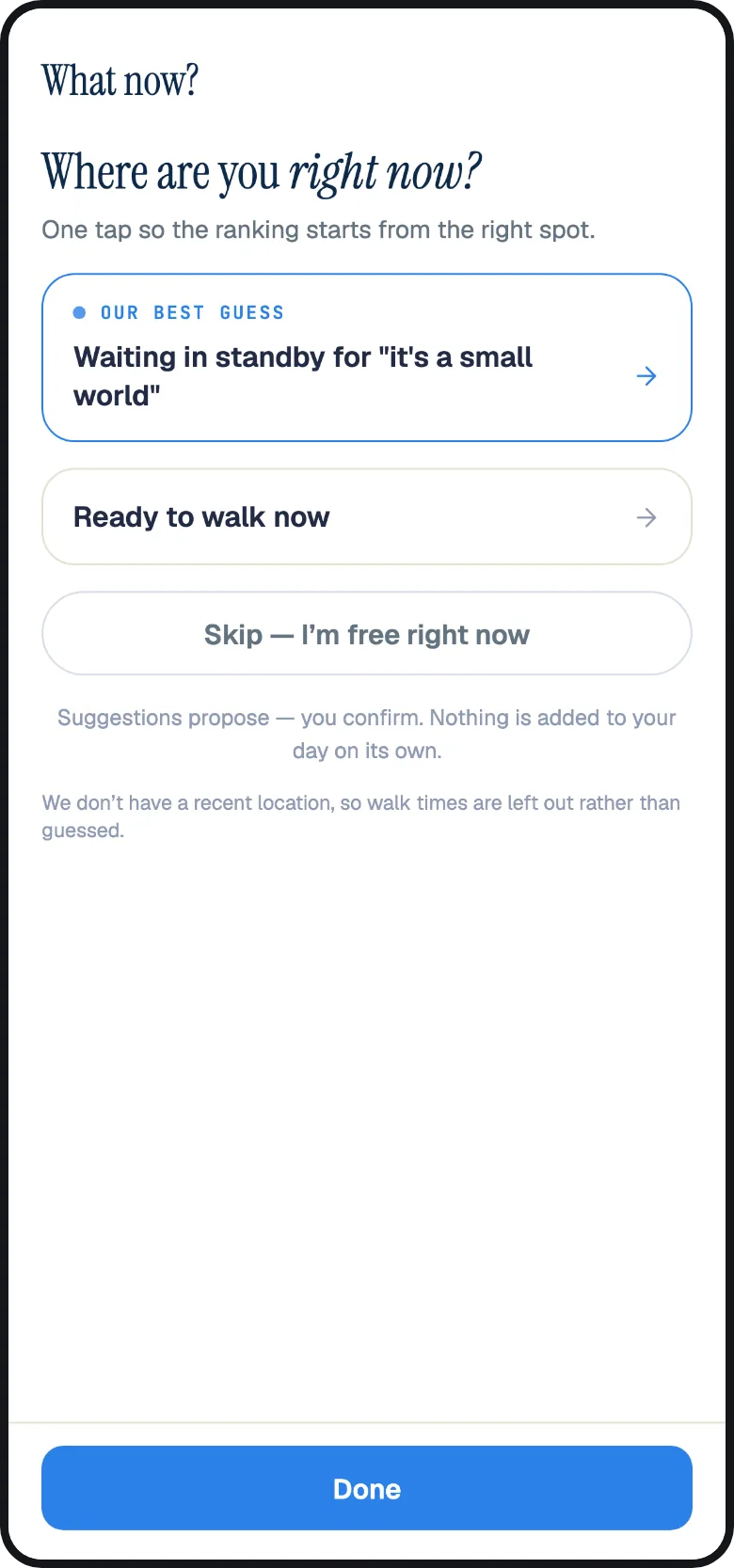
- What now? ranks your next moves using live waits, your party’s day and the time until your next reservation. It might suggest a break before a meal, a nearby ride with a short line, or your next Lane.
Fast Forward works alongside the planner. When you tap into a ride, it books the next Lightning Lane on your list. It also moves your held Lanes earlier, and the plan adjusts to their new times. What now? only suggests Lightning Lane moves when we have a fresh view of your Disney plans.
Saving and planning without an account
Guest plans save in your browser as you work and last for 14 days after your last change. You can start up to 3 trips per browser. Optimize and Auto-balance work for guests, along with the rest of the planner.
Save to phone in the header moves your plan to a free Mickey Alerts account. We text a code to your phone number. Enter it to use the plan on every device and in the app. We also ask you to save before sharing, setting up dining alerts or Fast Forward, or connecting Disney, because these need an account. You do not need a paid plan or trial to save.
Plaidy and your plan
In Mickey Alerts chat, Plaidy can read your saved trips and replan days. You can ask for a slower pace, a later start or an earlier finish. You can also ask to stay in one land, change parks, put a stop at a set time or re-optimize. Plaidy shows the proposed day on a card and waits for your confirmation. The preview lasts 30 minutes. One request can cover up to 10 days.
Use the planner to change dates, party, travellers or priorities, place parks, run Auto-balance or share a plan. Plaidy points you to those controls. Chat reads trips saved to your account, so save a guest plan first. Plaidy uses this page to explain how the planner works.
When something looks off
What the planner says, what it means, and what to do:
- Nothing was placed, not enough crowd data. We do not have crowd data for your dates yet. This usually happens with dates far in the future. Pick parks by hand. Place my priorities works again once the data exists.
- Trip shape changed, or Schedule out of sync. You changed a day’s park, pace or type after its schedule was built. Re-optimize all, or Re-sync the day. Your own stops and bookings are kept.
- Your plan changed in another tab or by someone else. The plan was edited somewhere else since this screen loaded. Reload the latest plan. Version history has the earlier one.
- We could not check your Disney reservations. We could not read a connected Disney account. Optimize kept your plan unchanged to protect bookings it could not see. Reconnect your Disney account, then try again.
- This day stays as you set it. A water-park day has no wait times to plan around. Nothing to do; add stops by hand if you like.
- The park has closed for today. Optimize was asked to build today after park close. Build tomorrow instead; today is kept as it was.
- The planner is taking a short break. We are busy or restarting. Your plan is safe. Try again in a few minutes.
Trips can last up to 21 days, with automatic park placement for trips up to 14 days. If you see a lock or a plans card in the planner, we have made a mistake. Tell us in chat; a person will read your message.
Questions people ask
Is the park planner really free?
Yes. Park placement, day building, Optimize, Auto-balance and Lightning Lane planning are free, with or without an account. No paid plan or trial is needed. A Fast Forward pass is the only paid service you can set up from the planner, and you confirm that separately.
Do I need a Disney account to use it?
No. Your dates and priorities are enough to plan a trip. Connect Disney to include your bookings. Fast Forward and dining auto-booking need that connection because they work on your Disney account.
Does the planner book my dining or Lightning Lanes?
No. The planner schedules them. You can then set up a dining alert to watch for a table or a Fast Forward goal to book a Lightning Lane. You confirm each one before it starts.
How does it know how long the lines will be?
We record standby waits at every ride every few minutes. For future dates, we use that ride’s typical wait at the same time and on the same weekday, adjusted for expected crowds. On the day, we blend the live wait with the typical pattern.
What happens to the stops I added if I press Optimize again?
They stay. Optimize replaces only stops it added. Stops you added or moved remain, locked stops keep their times, and removed stops are never suggested again.
Can I plan a trip longer than two weeks?
Yes, up to 21 days. For trips up to 14 days, the planner places parks for you. For longer trips, you choose each day’s park. The planner builds the daily schedules the same way.
Will my plan show in the app?
Yes. Save the plan with your phone number and sign in to the Mickey Alerts app with the same number. The Today tab shows the trip and the Schedule tab shows each day; pull down to refresh after a change on the website.
Can two people edit the same plan?
A plan belongs to one account, and a shared link is read-only. Two people signed in to the same account can edit it, and the planner asks the second one to reload rather than overwrite a change it has not seen.
What does Plaidy do with my plan?
Plaidy can show a saved trip and suggest a revised day for you to confirm. Ask for a slower pace, a later start or earlier finish, one land, a different park, a stop at a set time, or a re-optimize. Change dates, party and priorities, place parks and share from the planner.
What if I change my mind halfway through the day?
Open the catch-up sheet in the app and mark what you have done. Reflow my day rebuilds the remaining stops from now using live waits. Open What now? for your best next moves, ranked on live data.
Keep reading: How Lightning Lane works at Disney World and Disneyland and How Lightning Lane Fast Forward works. Something on this page is wrong or missing? Tell us in chat and a person reads it.